7 Tips for Better Thermal Sticker Printing
Better thermal sticker printing begins with small decisions, not expensive equipment. A clean printhead, suitable label stock, and correct heat settings can transform a smudged label into a sharp, readable one. In busy warehouses, even a tiny gap in a barcode can slow scanning and create costly confusion.
Thermal-printing specialist Steve McCallum says, “Print quality depends on the entire system, not the printer alone.” That principle guides this practical introduction to seven reliable improvements. The process includes choosing the right direct thermal or thermal transfer method, matching ribbons with materials, and controlling darkness without burning fine details. It also considers storage conditions, label alignment, print speed, and routine maintenance. Simple changes matter.
Start with the surface.
A dusty platen roller may leave pale streaks across every sticker. Excessive darkness can hide narrow barcode spaces. High humidity can also affect adhesive performance and label curl. These details are easy to overlook. I have found that rushed settings often create repeat problems, even when the printer appears healthy. That is worth questioning.
The following tips focus on real production conditions. They are useful for shipping labels, product identification, retail stickers, and small-batch packaging. Each recommendation connects equipment settings with visible results. You will also see where common habits fail, because thermal sticker printing is not perfectly predictable. Materials vary. Printers age. Operators make reasonable mistakes. Better results come from observing the output, recording adjustments, and improving one variable at a time.
Choose the Right Thermal Labels and Printer for Your Project
Tip 1: Match the thermal label to your project before choosing a printer. Direct thermal labels work well for short-term shipping tags, receipts, and warehouse tasks. They darken with heat and may fade under sunlight or high temperatures. Thermal transfer labels use a ribbon and usually last longer. They suit outdoor bins, product samples, and inventory records.
Tip 2: Check label size, roll core, and print width carefully. A small mismatch can cause wrinkles, drifting text, or frequent jams. Measure the label’s width and gap with a ruler. Then compare those figures with the printer’s specifications. I have found that adhesive quality matters too. Dusty cardboard can defeat even a strong adhesive.
Tip 3: Choose resolution based on the smallest detail you need to print. A standard resolution may handle clear text and simple barcodes. Higher resolution helps with tiny symbols, dense codes, and narrow lines. Test before buying in bulk. Print ten labels, not one. Inspect them after rubbing, bending, and mild heat exposure. My early tests sometimes looked perfect, but real handling revealed weak contrast and peeling edges.
Keep the printer area clean. A little residue can distort every label. Use compatible supplies whenever possible, but verify performance through your own samples. Specifications guide the decision; actual conditions decide it.
Prepare Artwork and Label Layouts for Clear, Accurate Printing
7 Tips for Better Thermal Sticker Printing
Prepare artwork at the printer’s native resolution, such as 203 or 300 dpi. Keep logos sharp and convert fine details into simple, high-contrast shapes. Thermal printers handle clean black areas better than soft gradients. Avoid pale gray. It often disappears.
Build the label layout around its final size. Leave a quiet zone around barcodes and keep text away from the cut edge. Use consistent margins, aligned baselines, and enough spacing between fields. Test barcode width with a real scanner, not only on screen. Short labels need special care. Tiny text can become unreadable after heat, pressure, or surface texture affects the print. I once approved a layout with a two-millimeter bottom margin. It printed correctly in testing, but production drift clipped several characters. That mistake changed our checking process.
Create a physical proof using the intended material and print speed. Check contrast, barcode readability, small text, and the position of variable data. Print several samples, because one perfect label proves very little. Keep important information away from folds, seams, and rounded corners. Review artwork at actual size, not enlarged on a monitor. Ask another operator to inspect it. Fresh eyes find crowded fields quickly. Leave room for revision. A layout that looks balanced may still waste label stock or slow application. Reliable printing comes from repeatable files, clear measurements, and honest testing.
7 Tips for Better Thermal Sticker Printing
Prepare artwork and label layouts for clear, accurate printing by matching line detail to the printer’s native resolution.
The chart shows the nominal dot pitch for common thermal printer resolutions. A smaller dot pitch allows finer artwork details, but text, barcodes, quiet zones, and margins should still be tested at the final label size.
Test, Inspect, and Troubleshoot Every Printed Label Carefully
7 Tips for Better Thermal Sticker Printing
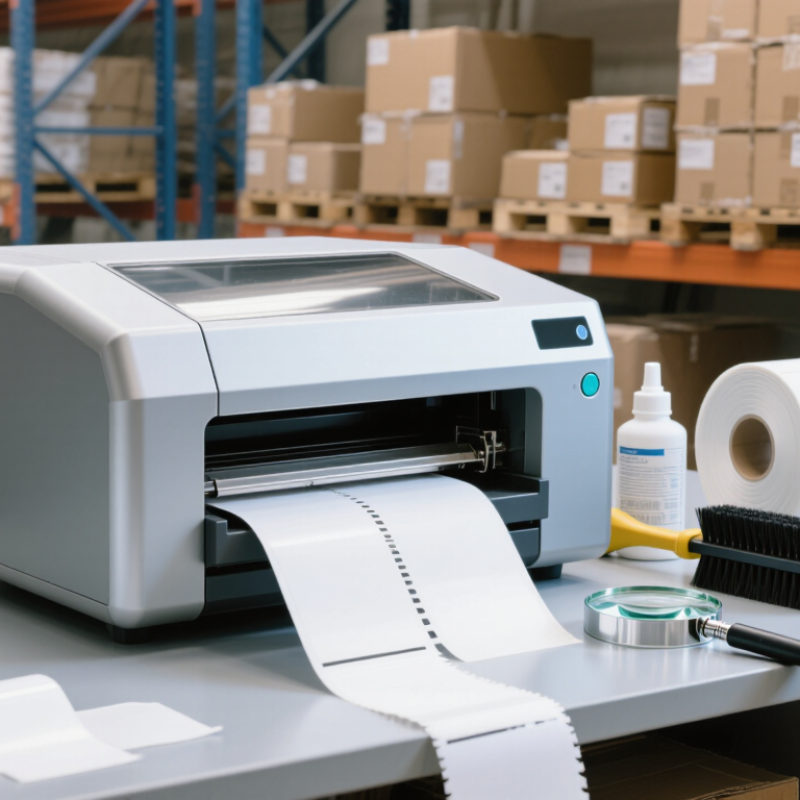
Test every new label roll before production begins. Print a small sample and check darkness, alignment, spacing, and edge sharpness. Confirm that the adhesive suits the package surface and expected temperature. A clean print head matters. Dust can create thin white lines across text or barcodes. Wipe the head carefully with an approved cleaning tool, then inspect it under bright light.
Use a calibrated verifier when labels carry barcodes. A scanner may read a weak code, but that does not prove reliable quality. Examine the quiet zones, narrow bars, and human-readable text. I once accepted a sample because it scanned quickly. Later, repeated scans failed after the labels were stacked. That shortcut revealed a poor inspection habit. Test labels at normal speed, reduced speed, and the planned darkness setting. Excess heat can blur small characters and damage the coating.
Troubleshooting should follow visible evidence. Faded areas may indicate low heat, high speed, or an uneven print head. Smearing can suggest excessive heat or unsuitable material. Misalignment often comes from incorrect sensor calibration or a loose label path. Change one setting at a time. Record the result beside the roll number, date, and machine conditions. Keep failed samples for comparison. Not every defect has an obvious cause, and rushed adjustments can create two problems instead of one. Allow labels to cool before judging their final appearance. Inspect several labels from the beginning, middle, and end of each run.

 '
'
